The Image Slideshow layer lets you cycle through multiple images with smooth fade transitions. It's ideal for rotating banners, sponsor logos, photo galleries, or any content that needs to display a series of images automatically.
Adding an Image Slideshow Layer
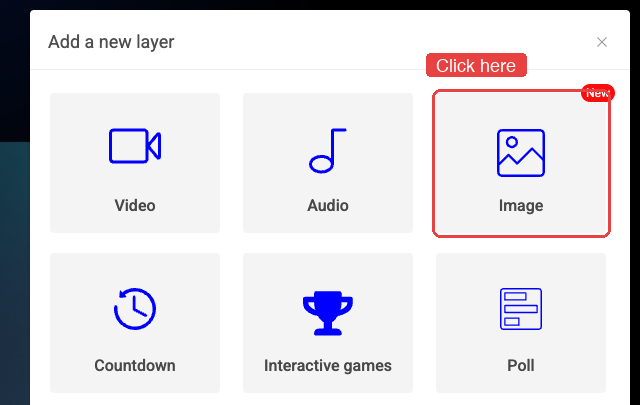
Step 1. In the editor, click New Layer in the sidebar, then select Image.
Step 2. Choose Image Slideshow.
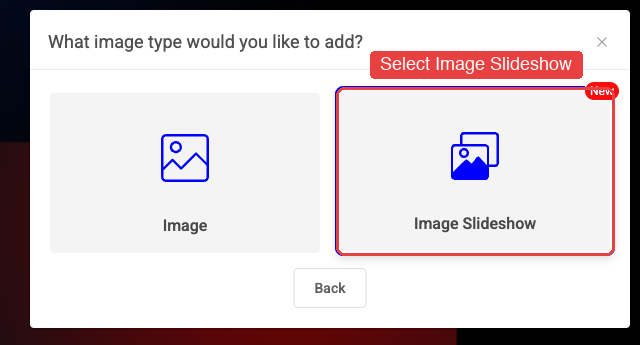
A new slideshow layer appears on the canvas. You can drag and resize it like any other layer.
Adding Images
Click Add images at the top of the sidebar settings to open the file gallery. Select one or more images (multi-select is supported). Your images will appear in the list below.
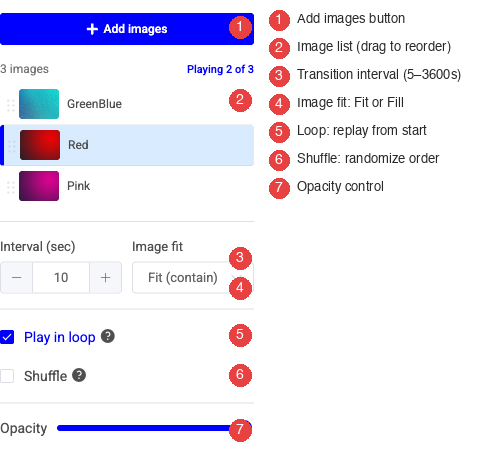
- Reorder images by dragging them via the handle on the left
- Remove an image by clicking the X icon on the right
- Jump to a specific image by clicking on it in the list
- The "Playing X of Y" indicator shows which image is currently displayed
Configuration Options
Interval
How long each image is displayed before transitioning to the next one. Set in seconds (5 - 3600). Default is 30 seconds.
Image Fit
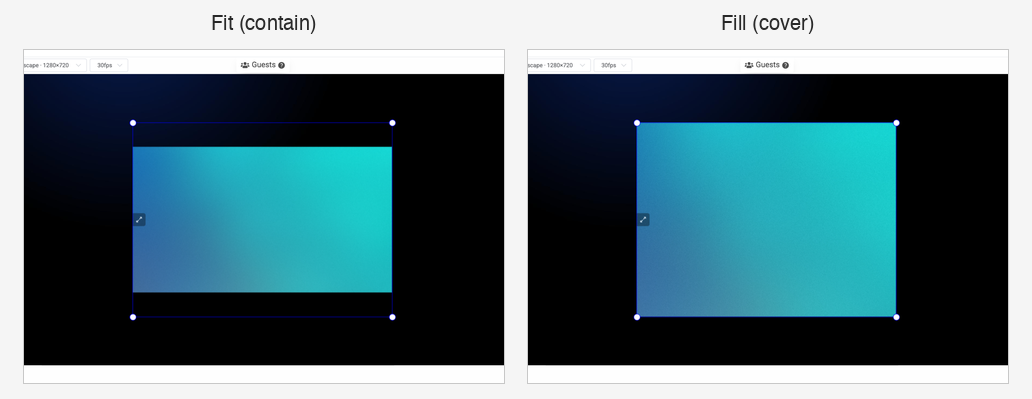
Controls how images fill the layer area:
| Mode | Behavior |
|---|---|
| Fit (contain) | Shows the entire image within the layer bounds. May leave empty space if aspect ratios differ. |
| Fill (cover) | Fills the entire layer area, cropping edges if the image aspect ratio doesn't match. |
Play in Loop
When enabled (default), the slideshow restarts from the first image after the last one. When disabled, the slideshow stops on the last image.
Note: Loop is automatically disabled when "Next scene" is configured, since the slideshow needs to end to trigger the scene switch.
Shuffle
Randomizes the image display order. A new random order is generated each time the slideshow loops. The shuffle is deterministic (seeded), so all connected clients see the same order.
Next Scene
Available when you have multiple scenes. Automatically switches to a chosen scene after the last image in the slideshow finishes displaying. Useful for chaining content, for example: show sponsor logos, then switch to the main stream scene.
Note: Enabling "Next scene" disables "Loop" since the slideshow must end to trigger the switch.
Opacity
Controls the transparency of the slideshow layer (1 - 10, where 10 is fully opaque).
How Transitions Work
Images transition with a 1-second fade effect. The next image is pre-loaded in the background so transitions are smooth, even with large images. If an image fails to load, it's automatically skipped.
Live Stream Sync
During a live broadcast, the slideshow keeps its position synchronized between the editor and the stream. If you close and reopen the editor, the slideshow catches up to the correct image based on elapsed time.
Use Cases
- Sponsor logos rotating during a live stream
- Photo slideshows for 24/7 ambient streams
- Product banners for e-commerce live streams
- Event schedules displaying different info cards
- Background visuals that change periodically
Template
A ready-to-use template is available: Ambient music + image slideshow - a 24/7 stream setup combining an audio playlist, image slideshow, and audio visualizer. Find it in the Templates section on the Projects page.
