You need a paid LiveReacting plan. Connect your YouTube, Facebook or other channels in LiveReacting Studio first. The plugin uses them.
Install the plugin
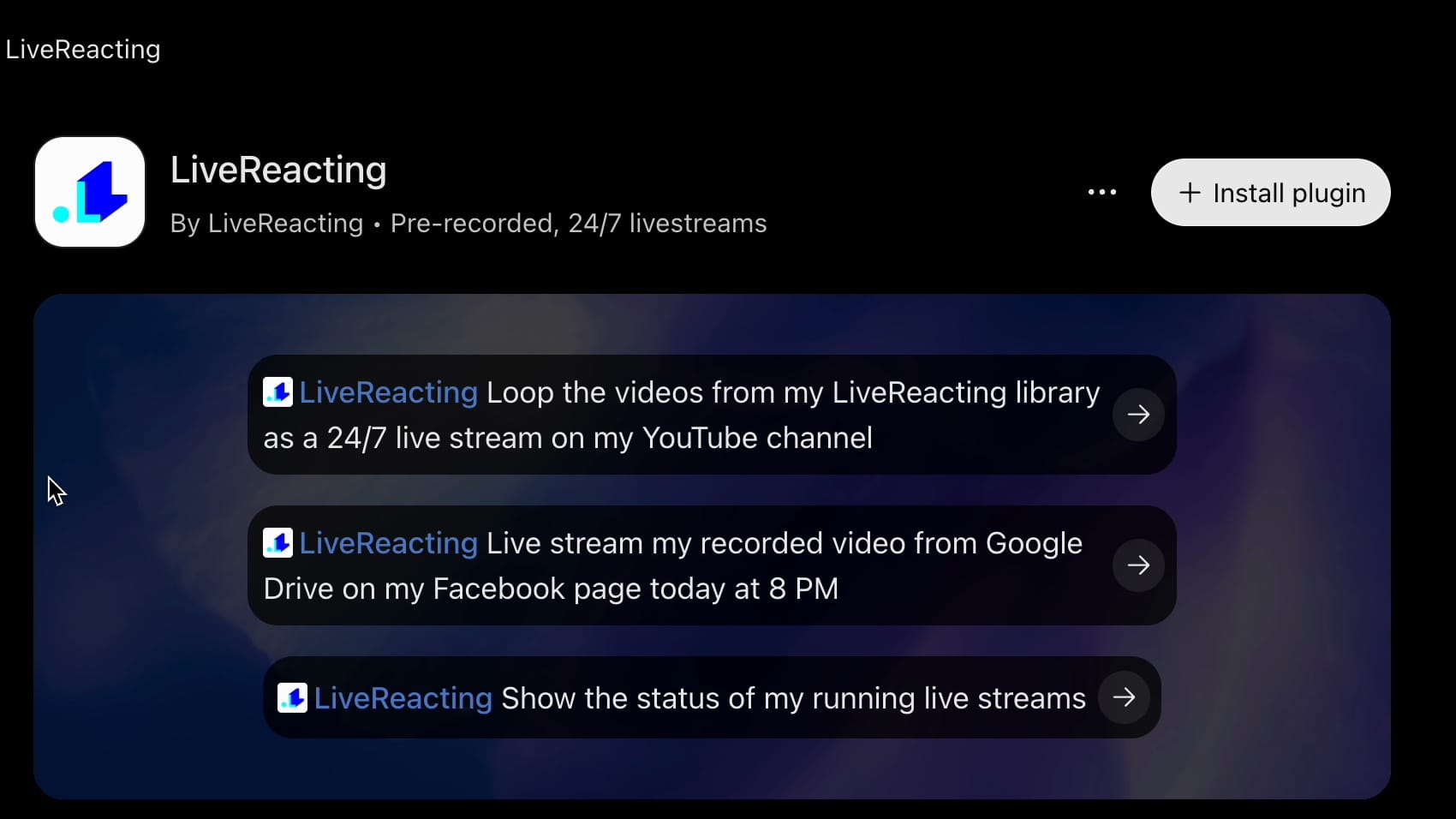
- In ChatGPT, click Plugins in the sidebar and search for LiveReacting. Or open the LiveReacting plugin page.
- Click Install plugin.
- Sign in to your LiveReacting account and click Allow.
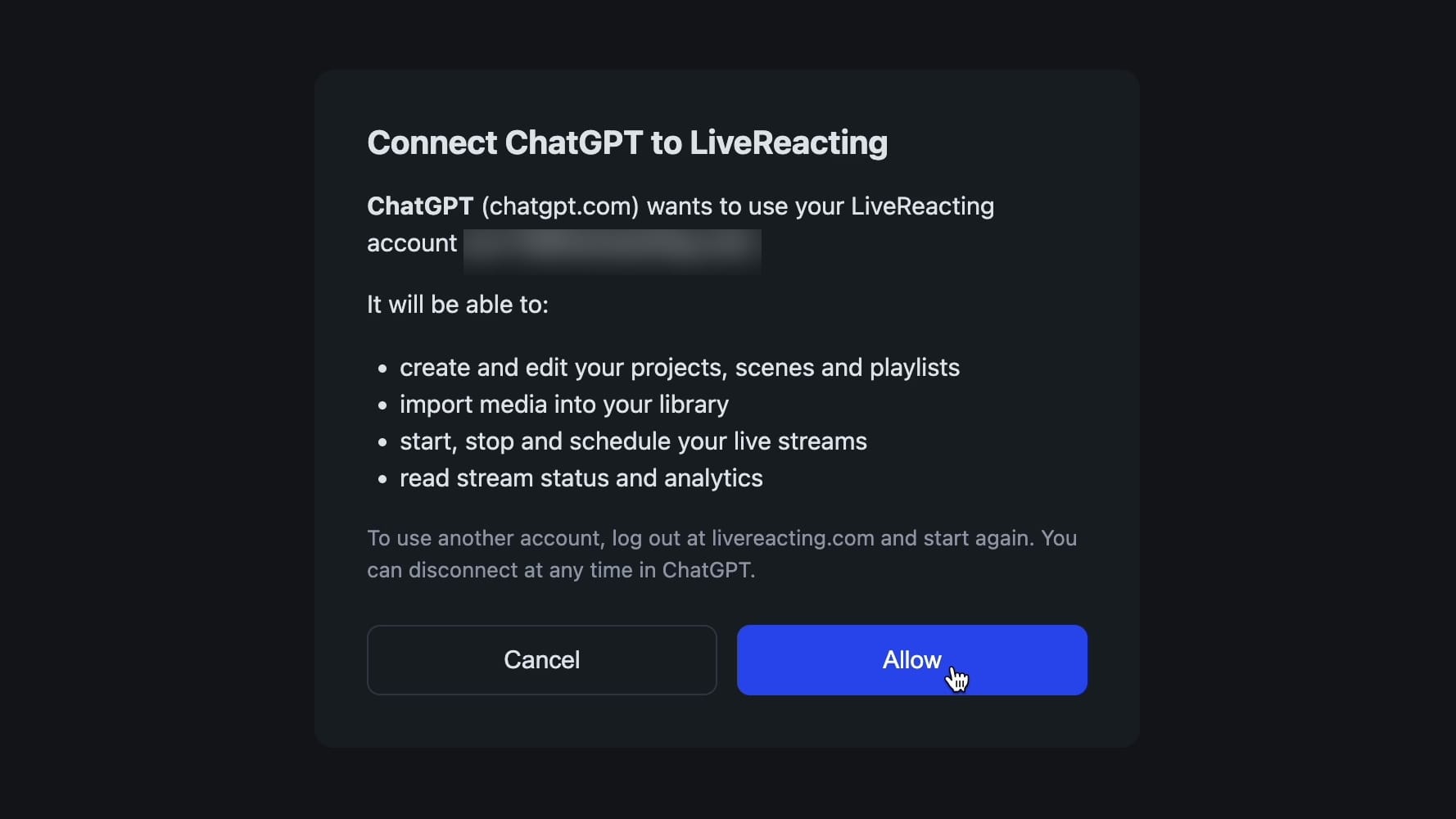
You do this once.
Start a stream
- In any chat, type @LiveReacting and say what you want. For example: "Loop the videos from my LiveReacting library as a 24/7 live stream on my YouTube channel".
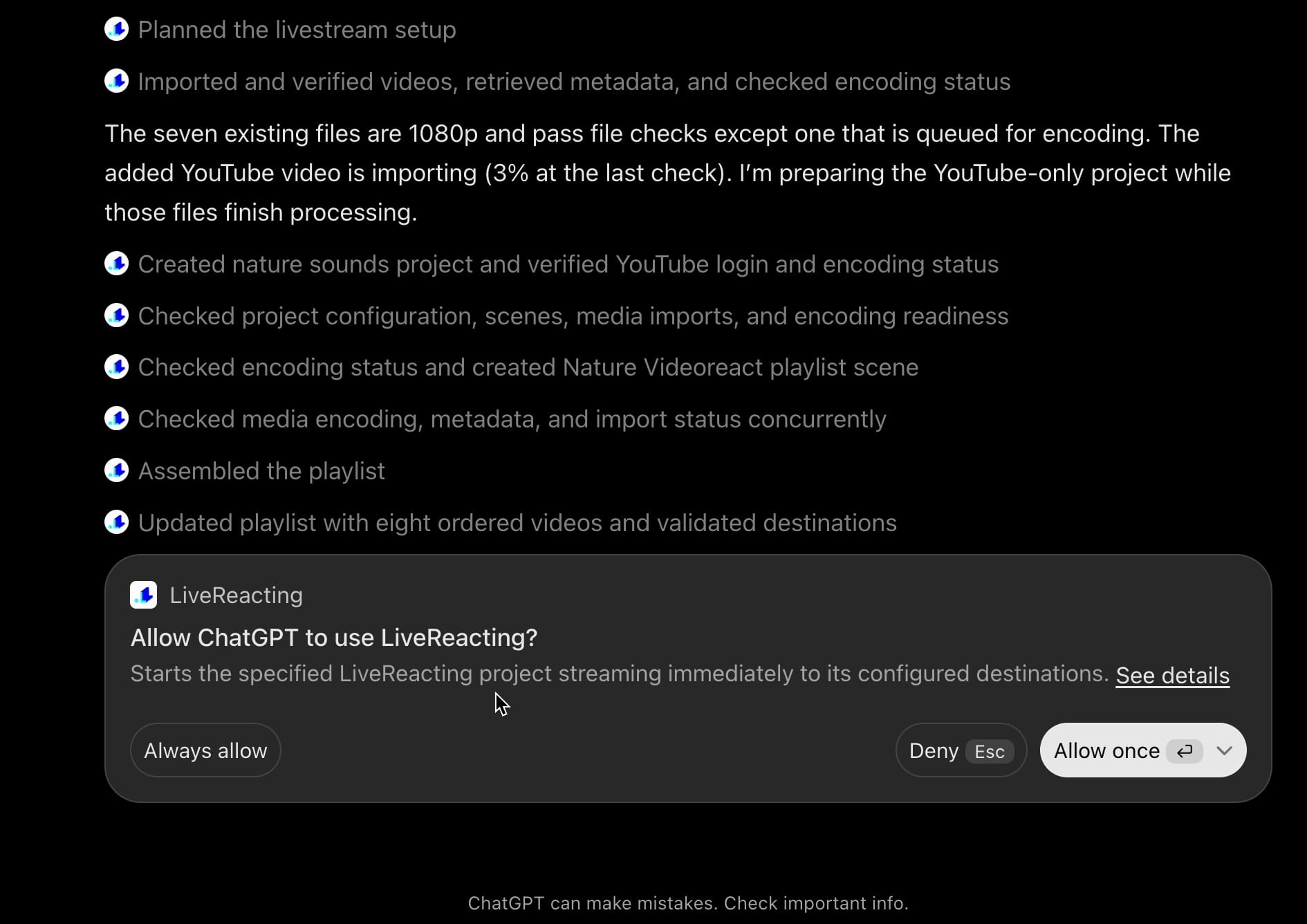
- Before ChatGPT starts the stream, it asks for your permission. Click Allow once.
- ChatGPT replies with a link to your live stream.
The stream runs on LiveReacting, so you can close ChatGPT and turn your computer off.
Other things you can ask
- "Live stream my recorded video from Google Drive on my Facebook page today at 8 PM"
- "Add this video to my 24/7 stream playlist: [link]"
- "Show the status of my running live streams"
- "Stop my 24/7 stream"
Good to know
- Videos can come from your LiveReacting library, a Google Drive, Dropbox or public link, or your own YouTube channel. To use a file from your computer, upload it in LiveReacting Studio first.
- Overlays, polls and games are built in LiveReacting Studio. ChatGPT can still start, stop and check that stream.
- A stream that goes only to Facebook stops after 8 hours. That is Facebook's limit. Add YouTube or another platform to keep a 24/7 stream running.
- On the Free plan you can install the plugin, but requests do not work.
- To disconnect, remove the plugin in your ChatGPT settings. A running stream keeps going.
More examples: LiveReacting for ChatGPT
